
Android Auto funktioniert nicht? Hier sind 5 mögliche Lösungen
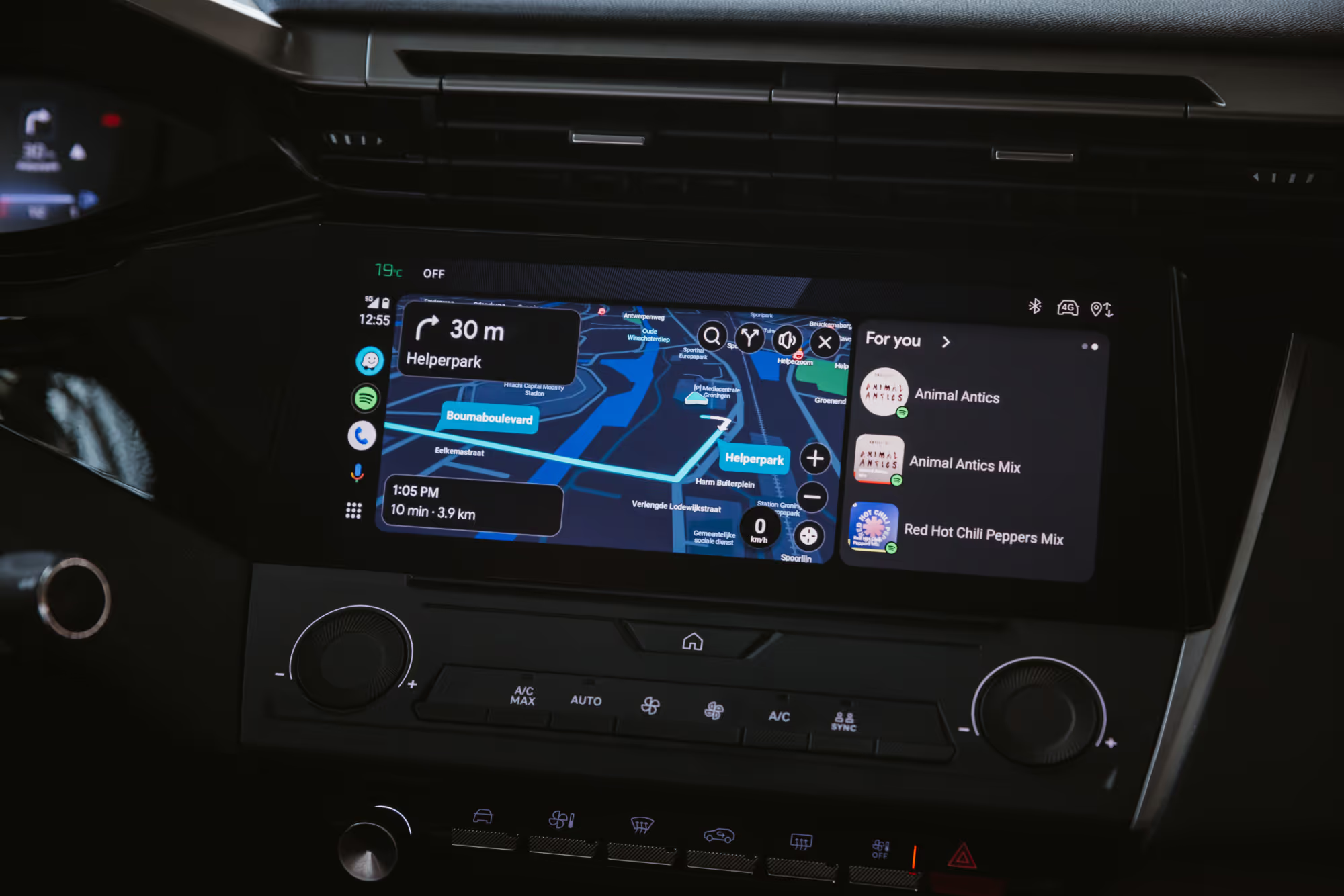
Mit Android Auto synchronisierst du dein Android-Gerät mit dem Infotainmentsystem deines Autos. Statt die eingebauten Navigations-, Nachrichten- und Entertainmentfunktionen deines Autos zu nutzen, verwendest du vertraute Android-Apps wie Spotify, Waze, Google Maps und WhatsApp.
Kurz gesagt: Android Auto macht es für Millionen Menschen sicherer und bequemer, einen Teil ihres Smartphones während der Fahrt zu nutzen. Genau deshalb ist es so ärgerlich, wenn dieses vertraute Tool plötzlich nicht mehr funktioniert. In diesem Artikel gehen wir auf 5 häufige Android-Auto-Probleme ein und zeigen dir, wie du sie behebst.
Grundvoraussetzungen
Bevor wir uns mögliche Lösungen ansehen, solltest du sicherstellen, dass du die Grundvoraussetzungen erfüllst:
- Android-Auto-kompatibles Auto: Dein Fahrzeug muss über ein kompatibles Infotainmentsystem verfügen.
- Smartphone mit Android-Betriebssystem:
- Kabelgebundenes Android Auto erfordert Android 9 oder höher.
- Kabelloses Android Auto erfordert Android 11 oder höher.
- Aktiver Datentarif: Sorge für eine zuverlässige mobile Internetverbindung.
1 USB-Probleme
Überprüfe dein USB-Kabel
Wenn du keinen kabellosen Android Auto Adapter verwendest, brauchst du ein USB-Kabel, um Android Auto in deinem Auto zu nutzen. Ein defektes Kabel ist einer der häufigsten Gründe, warum Android Auto nicht startet.
USB-Kabel können mit der Zeit verschleißen — ein kleiner Riss oder eine ausgefranste Stelle kann verhindern, dass dein Smartphone richtig verbindet. Probiere mehrere USB-Kabel aus, um zu prüfen, ob das Kabel das Problem ist.
Achte außerdem darauf, dass das Kabel Datenübertragung unterstützt und nicht nur zum Laden geeignet ist. Achte auf Kabel mit der Bezeichnung "USB-Datenkabel" oder überprüfe die Spezifikationen.
Überprüfe deine USB-Anschlüsse
Auch mit einem guten Kabel können USB-Anschlüsse Probleme verursachen:
- USB-Anschluss des Smartphones: Kann Staub ansammeln, was zu schlechten Verbindungen führt. Reinige ihn regelmäßig.
- USB-Anschlüsse im Auto: Probiere alle Anschlüsse aus, wenn dein Auto mehr als einen hat.
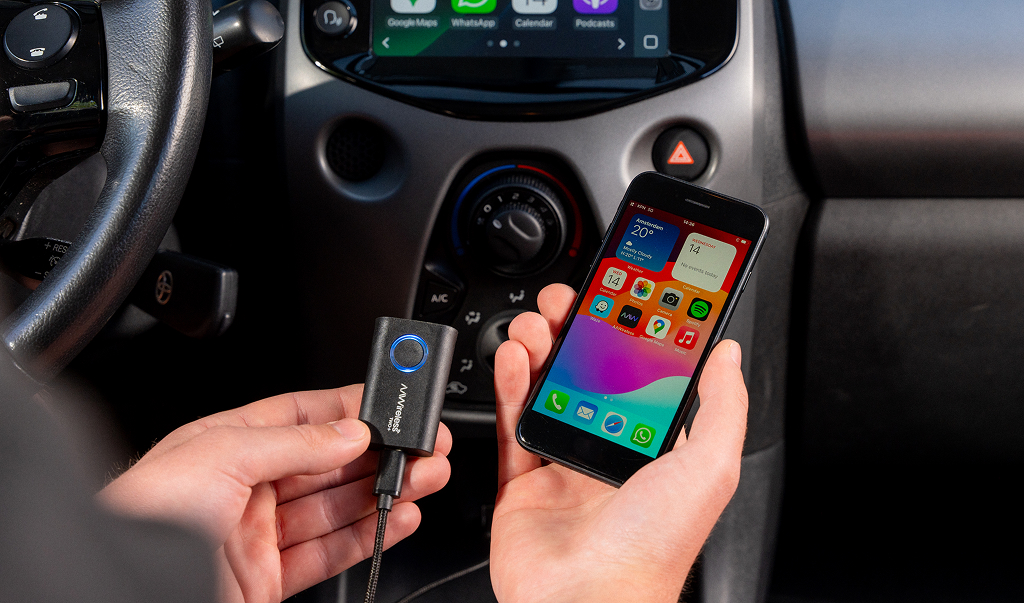
Wenn der USB-Anschluss deines Smartphones physisch beschädigt ist, können Reparaturen teuer werden. In dem Fall kann ein AAWireless Adapter eine gute Lösung sein, denn damit nutzt du Android Auto kabellos, ohne dein Smartphone einzustecken.
Ganz ohne Kabel zu fahren beseitigt diese Fehlerquelle vollständig. In unserem Guide zum Thema Android Auto kabellos machen erfährst du, was du dafür brauchst und wie du es einrichtest.
2 Updates, Cache und Speicher
Wenn Android-Apps sich seltsam verhalten, ist der erste Schritt, nach Updates zu suchen. Möglicherweise lässt dein Gerät keine automatischen Updates zu, sodass Android Auto sich nicht selbst aktualisiert.
Suche nach Updates, indem du den Google Play Store öffnest und nach Android Auto suchst.
Cache und Speicher leeren
Eine weitere schnelle Lösung ist das Leeren des Android-Auto-Caches (oder des Speichers, falls nötig).
Gehe zu: Einstellungen → Apps → Android Auto → Speicher & Cache
Cache leeren (Android Auto)
- Was es bewirkt: Entfernt temporäre Dateien.
- Auswirkung: Behebt kleine Störungen, ohne deine Einstellungen zu löschen.
- Unbedenklich: Ja.
Speicher (oder Daten) leeren
- Was es bewirkt: Setzt Android Auto zurück, als wäre es neu installiert.
- Auswirkung: Du musst die App-Einstellungen neu konfigurieren.
- Möglicherweise musst du Android Auto in deinem Auto neu verbinden und neu autorisieren.
- Unbedenklich: Ja, aber danach ist eine erneute Einrichtung nötig.
Wann Cache und wann Speicher leeren?
- Cache leeren: Android Auto ist langsam, hakt oder stürzt ab.
- Speicher leeren: Die Probleme bestehen auch nach dem Leeren des Caches weiter.
Hinweis: Denk vor dem Leeren des Speichers an deine individuellen Einstellungen.
3 Inkompatible Head unit
Rund 200 Millionen Autos unterstützen Android Auto — weltweit gibt es aber über 1,5 Milliarden Autos, was bedeutet, dass die meisten Fahrzeuge es nicht von Haus aus unterstützen.
Wenn dein Auto von vor 2016 ist, unterstützt die werkseitige Head unit möglicherweise kein Android Auto.
Deine Möglichkeiten:
- Bau eine nachgerüstete Head unit ein, die Android Auto unterstützt.
- Überprüfe die Kompatibilität deines Autos vor dem Kauf.
4. Berechtigungen und Einstellungen
Android Auto benötigt Zugriff auf:
- Standort
- Kontakte
- Bluetooth
Wenn diese Berechtigungen nicht erteilt sind, kann Android Auto die Verbindung möglicherweise nicht herstellen.
Überprüfe außerdem deinen USB-Modus:
- Wenn er auf "Nur Laden" eingestellt ist, funktioniert Android Auto nicht.
- Stelle deinen USB-Modus auf "Dateiübertragung" oder MTP (Media Transfer Protocol) um.
5. Bluetooth- oder Netzwerkstörungen
Probleme mit Bluetooth oder Wi-Fi können verhindern, dass Android Auto die Verbindung herstellt.
Bluetooth- und Wi-Fi-Verbindung
Kabelloses Android Auto ist sowohl auf Bluetooth als auch auf Wi-Fi angewiesen. Probleme wie:
- fehlerhafte Bluetooth-Kopplung
- Wi-Fi-Störungen
- Geräte in der Nähe, die Signalrauschen verursachen
können Android Auto unterbrechen.
Wenn du einen AAWireless Adapter verwendest, enthält die companion app Tools, mit denen du Verbindungsprobleme diagnostizieren und beheben kannst.
Probleme mit der Internetverbindung
Einige Android-Auto-Funktionen erfordern eine Internetverbindung:
- Google Assistant
- Musik-Streaming
- Live-Navigationsdaten
Sorge für eine stabile Verbindung und einen aktiven Datentarif.
Genieße kabelloses Android Auto
Android Auto ist ein fantastisches Tool, aber Probleme können auftreten. Indem du:
- dein USB-Kabel und deine USB-Anschlüsse überprüfst
- die Kompatibilität sicherstellst
- die App aktualisierst
- Berechtigungen und USB-Einstellungen kontrollierst
- für eine stabile Bluetooth-/Wi-Fi-Verbindung sorgst
Wenn du ein reibungsloses, kabelfreies Erlebnis möchtest, ist der AAWireless Adapter eine einfache kabellose Lösung für Android Auto.
Sieh dir unsere neuesten Artikel an
Diese Artikel könnten dich auch interessieren
.avif)