
Android Auto Not Connecting or Not Working? Here are 5 Fixes
Android Auto not connecting or not working in your car? In most cases the cause is simple: a faulty USB cable, an outdated app, missing permissions or a Bluetooth or Wi-Fi issue. Work through these 5 fixes in order:
- Check your USB cable and ports.
- Update Android Auto and clear the cache.
- Make sure your car is compatible.
- Check your permissions and USB settings.
- Check your Bluetooth and Wi-Fi connection.
Basic Requirements
Before diving into possible fixes, make sure you meet the basic requirements:
- Android Auto–compatible car: Your vehicle must have a compatible infotainment system.
- Smartphone with Android OS:
- Wired Android Auto requires Android 9 or higher.
- Wireless Android Auto requires Android 11 or higher.
- Active data plan: Ensure you have reliable mobile internet.
1. Android Auto not connecting via USB: check the cable and port
Check Your USB Cable
If you're not using a wireless Android Auto adapter, you need a USB cable to run Android Auto in your car. A faulty cable is one of the most common reasons Android Auto won’t start.
USB cables can wear out over time: a small tear or fray may prevent your phone from connecting properly. Try multiple USB cables to verify whether the cable is the issue.
Also make sure the cable supports data transfer, not just charging. Look for cables labeled USB data cable or check the specifications.
Is your phone charging but Android Auto not connecting via USB? That usually means the cable only supports charging, or your phone’s USB mode is set to “Charging only”. Switch to a data cable or change the USB mode to File Transfer (see fix 4).
Check Your USB Ports
Even with a good cable, USB ports can cause issues:
- Phone USB port: Can collect dust, causing poor connections. Clean it periodically.
- Car USB ports: Try all ports if your car has more than one.
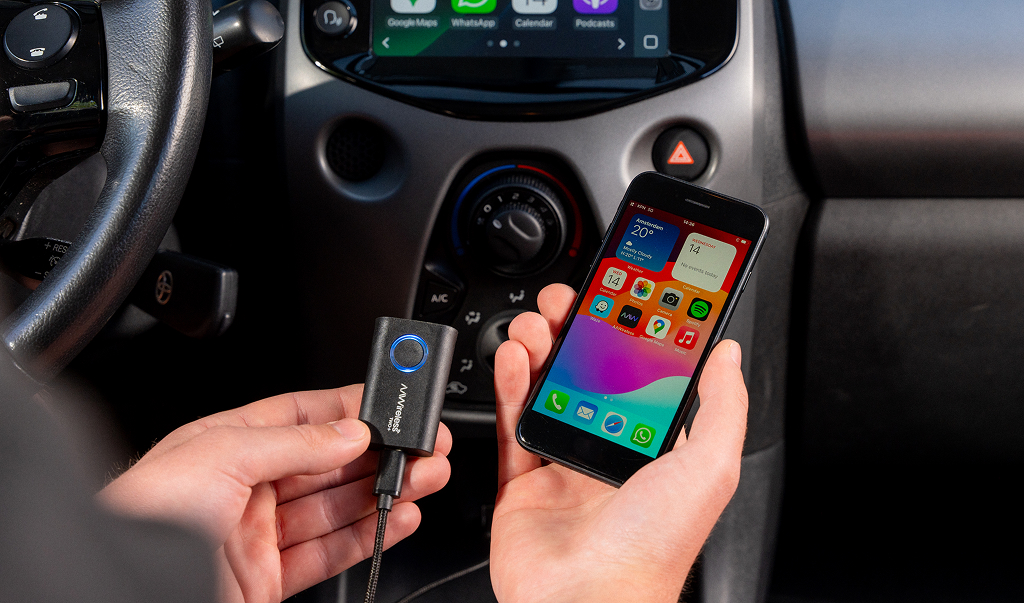
If your phone’s USB port is physically damaged, repairs can be costly. In that case, an AAWireless adapter may be a good solution, since it allows you to use Android Auto wirelessly without plugging in your phone.
Skipping the cable altogether removes this failure point entirely. Our guide on how to make Android Auto wireless explains what you need and how to set it up.
2. Updates, Cache and Storage
Whenever Android apps misbehave, the first step is to check for updates. Your device may not allow automatic updates, meaning Android Auto won’t update itself.
Check for updates by opening the Google Play Store and searching for Android Auto.
Clear Cache and Storage
Another quick fix is clearing Android Auto’s cache (or storage, if needed).
Go to:
Settings → Apps → Android Auto → Storage & cache
Clearing Cache (Android Auto)
- What it does: Removes temporary files.
- Impact: Fixes small glitches without deleting preferences.
- Safe to do: Yes.
Clearing Storage (or Data)
- What it does: Resets Android Auto as if freshly installed.
- Impact:
- You must reconfigure app settings.
- You may need to reconnect and reauthorize Android Auto in your car.
- Safe to do: Yes, but it requires setup afterward.
When to Clear Cache vs. Storage
- Clear cache: Android Auto is slow, glitchy, or crashes.
- Clear storage: Problems persist even after clearing the cache.
Note: Before clearing storage, remember your custom settings.
3. Incompatible Head Unit
Around 200 million cars support Android Auto,but the world has over 1.5 billion cars, meaning most vehicles don’t support it natively.
If your car is from before 2016, its factory head unit may not support Android Auto.
Your options:
- Install an aftermarket head unit that supports Android Auto.
- Check your car’s compatibility before purchasing.
4. Permissions and Settings
Android Auto needs access to:
- Location
- Contacts
- Bluetooth
If these permissions aren’t granted, Android Auto may fail to connect.
Additionally, check your USB mode:
- If set to Charging only, Android Auto won’t work.
- Change your USB mode to File Transfer or MTP (Media Transfer Protocol).
5. Wireless Android Auto not connecting: Bluetooth and Wi-Fi
Bluetooth or Wi-Fi issues can prevent Android Auto from connecting.
Bluetooth and Wi-Fi Connectivity
Wireless Android Auto relies on both Bluetooth and Wi-Fi. Issues such as:
- Faulty Bluetooth pairing
- Wi-Fi interference
- Nearby devices causing signal noise can interrupt Android Auto.
If you use an AAWireless adapter, its Companion App includes tools for diagnosing and fixing connectivity issues.
Internet Connection Problems
Some Android Auto features require an internet connection:
- Google Assistant
- Music streaming
- Live navigation data
Ensure you have a stable connection and an active data plan.
Conclusion
Android Auto is a fantastic tool, but issues can occur. By:
- Checking your USB cable and ports
- Verifying compatibility
- Updating the app
- Reviewing permissions and USB settings
- Ensuring Bluetooth/Wi-Fi stability
If you want a seamless, cable-free experience, consider the AAWireless TWO+ adapter, a simple wireless solution for Android Auto.
Frequently Asked Questions
Why does Android Auto keep disconnecting?
Android Auto usually keeps disconnecting because of a worn USB cable, a dirty port or your phone’s battery optimization closing the app in the background. Try a different data cable, clean the port and go to Settings → Apps → Android Auto → Battery and choose “Unrestricted”. On wireless Android Auto, Wi-Fi interference can also drop the connection.
If a worn port is the problem, a wireless adapter like the AAWireless TWO or AAWireless TWO+ removes the cable altogether.
How do I reset Android Auto?
To reset Android Auto, unplug your phone and force stop the app via Settings → Apps → Android Auto → Force stop. Then restart your phone and turn your car off for a few minutes so the infotainment system restarts too. Reconnect your phone. If the problem continues, clear the Android Auto cache (see fix 2).
Why is Android Auto not showing on my car screen?
If Android Auto doesn’t appear on your car screen, your car may not be compatible, Android Auto may be disabled in the car’s settings, or your cable only supports charging. Check the car’s menu to make sure Android Auto (or smartphone projection) is turned on, use a data cable and make sure your phone runs Android 9 or later. On many phones you’ll find Android Auto under Settings → Connected devices.
Why is Android Auto stuck on connecting after an update?
When Android Auto gets stuck on connecting after an update, the app, Google Play services or your phone’s software are often out of sync. Update all three, restart your phone and clear the Android Auto cache. If it still won’t connect, remove your car from the list of previously connected cars in the Android Auto settings and pair it again.
Latest articles
Here are some other articles you might be interested in.
.avif)